Introducing Upto
Most Mac apps can update themselves. The trouble is that each one does it differently, and some never do it at all. Upto puts every app and command-line tool on your Mac in one list, finds the ones that are out of date, and installs their updates for you.
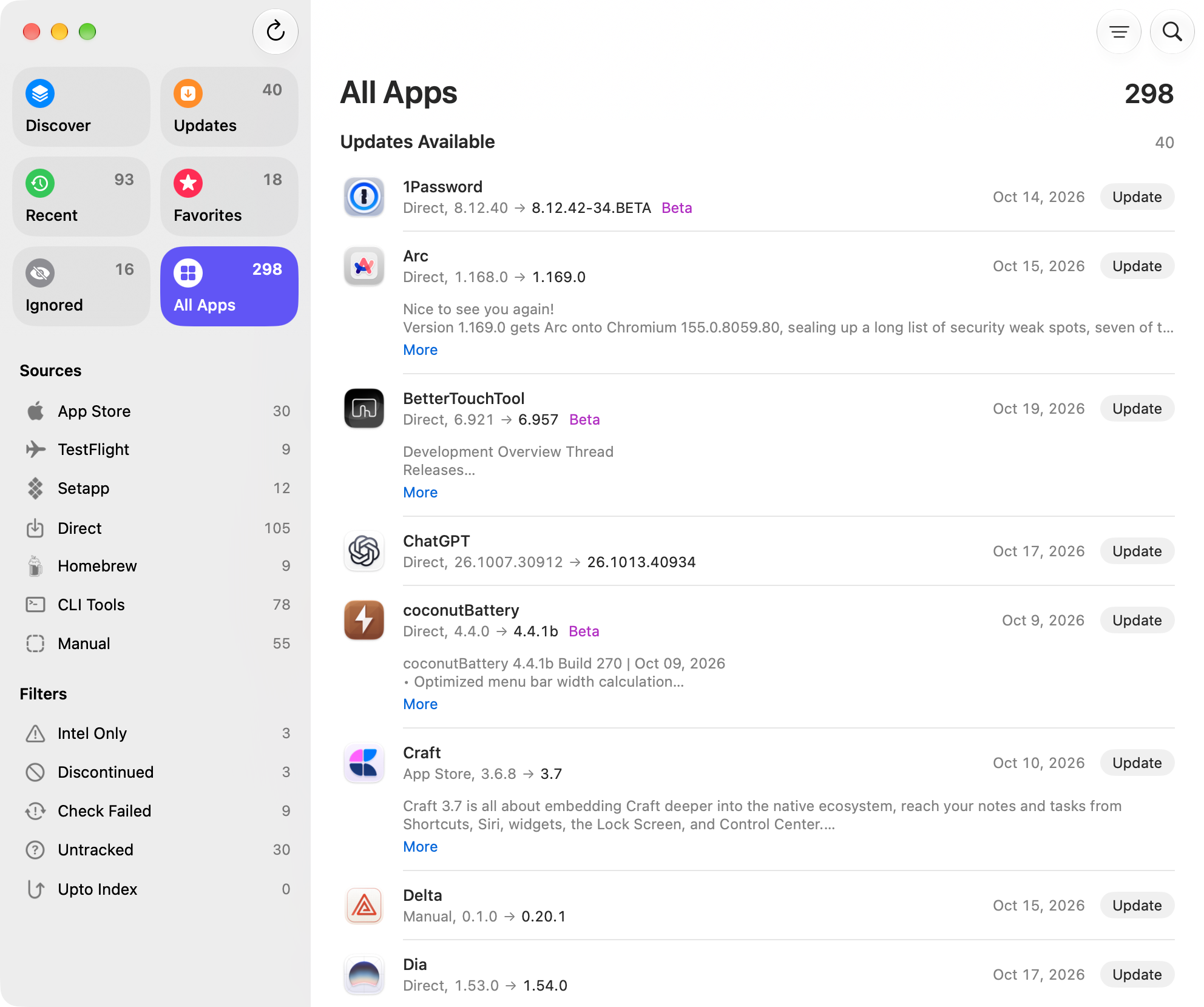
A Mac that has been in use for a while collects apps from everywhere. Some came from the App Store. Others were downloaded from a developer’s website, installed with Homebrew, or arrived through TestFlight or Setapp. Then there are the command-line tools, installed with npm, pipx, or an install script you no longer remember running.
Each of these updates in its own way. The App Store has a tab for its own apps and nothing else. Apps with a built-in updater ask when you open them, which is usually when you want to get something done. Homebrew updates what it installed, and only when you run it. Plenty of apps from the web have no updater at all, so you hear about a new version only if you happen to visit the developer’s site.
No single place tells you what on your Mac is out of date. Upto does.
For years, many Mac users relied on MacUpdater for this. Its developers stopped maintaining it on January 1, 2026, and its database server will be turned off at the end of the year, as they explain in their FAQ. If you used it, there is nothing to import. Your apps appear in Upto the first time it opens.
One list, every source
Upto scans your Applications folders, and any other folder you add, and files every app under its source: the App Store, TestFlight, Setapp, Homebrew, Direct for apps with their own updater, or Manual for apps you update by hand. There’s no account to create and nothing to set up. Upto opens on the results of its last check, so the list is ready as soon as the window is.
Filters in the sidebar point out apps worth a closer look. Intel Only lists apps built only for Intel processors. Discontinued shows apps that are no longer maintained. Check Failed and Untracked show where Upto couldn’t get an answer or doesn’t know a source yet. Recent, at the top, lists the apps installed or updated in the last two weeks, by day.
Checked at the source
Upto checks each app with the source it came from, as often as you like, from every hour to every month. App Store apps are checked against the App Store, Homebrew apps against Homebrew, and apps with a built-in updater against the update feed the app itself uses. TestFlight apps show an update when a newer version is on the App Store. Setapp keeps its own apps up to date, so Upto lists them without checking them. When an app updates on its own, it leaves the list as soon as the new version is installed.
Apps downloaded from the web are harder. Upto finds an update source for most of them and keeps using it. If it isn’t sure about a source, it asks you to review it first. You can also give any app from outside the App Store, TestFlight, and Setapp an update feed, a GitHub repository, or a web page yourself.
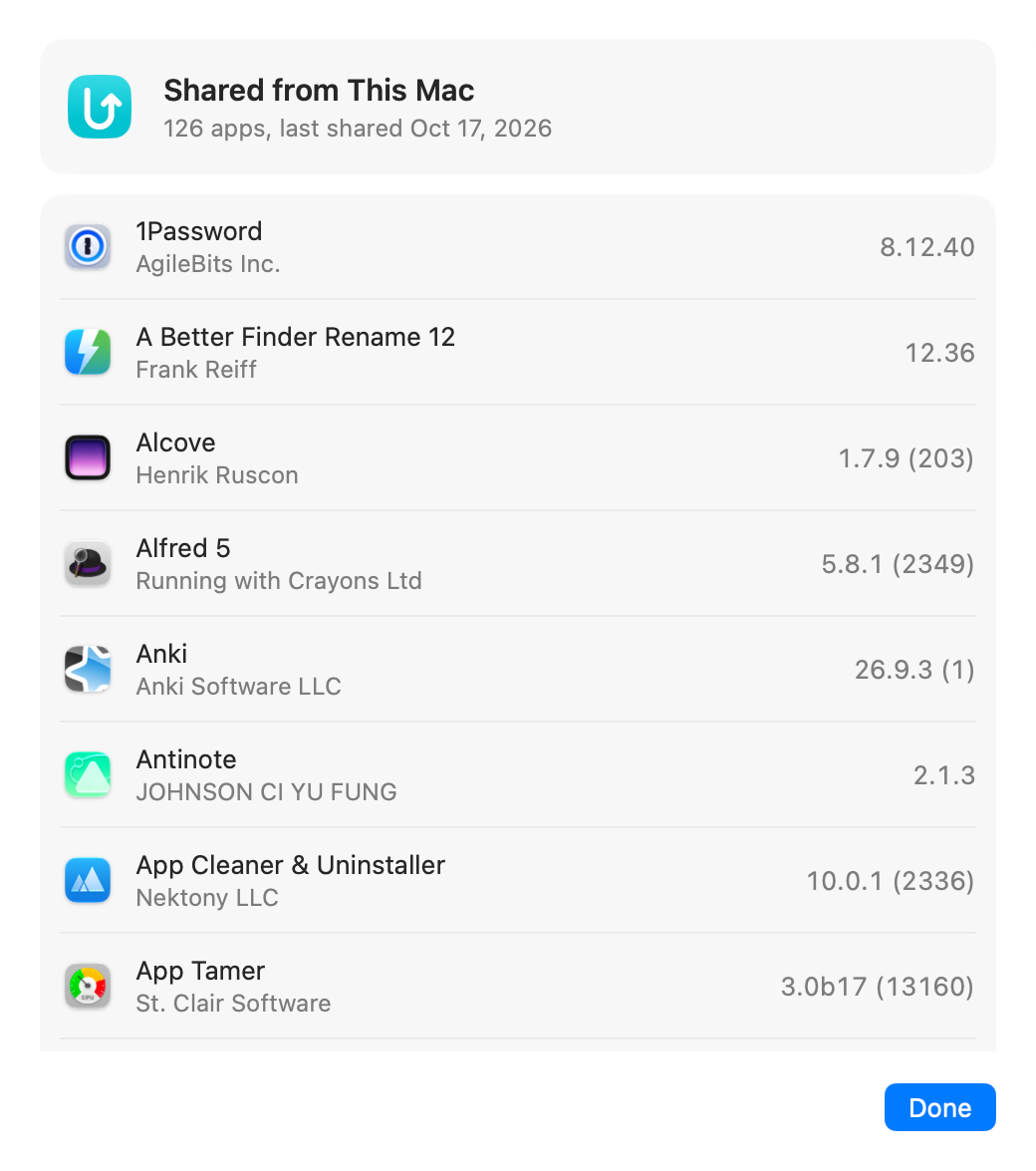
Some apps don’t publish updates anywhere at all, and some beta channels don’t list every build. For these, Upto Index finds newer versions among the ones people using Upto have installed and shared anonymously. A version you install on one Mac also shows up on your other Macs that use the same license at their next check. Upto Index receives nothing that identifies your Mac and never hears about apps you ignore indefinitely or exclude. You can turn it off in Settings, and the Upto FAQ lists what it shares.
Verified, then installed in place
Before installing an update, Upto verifies the download against the developer’s signature. Homebrew verifies the apps it updates against their published checksum, when there is one. Upto won’t install an update that fails a check, doesn’t run on your Mac, or isn’t newer than the version you have. The new version replaces the old one where it is, under the same name. If the app is running, Upto asks it to quit and opens it again afterward. The old version can go to the Trash instead of being deleted, and nothing is left behind in your Downloads folder.
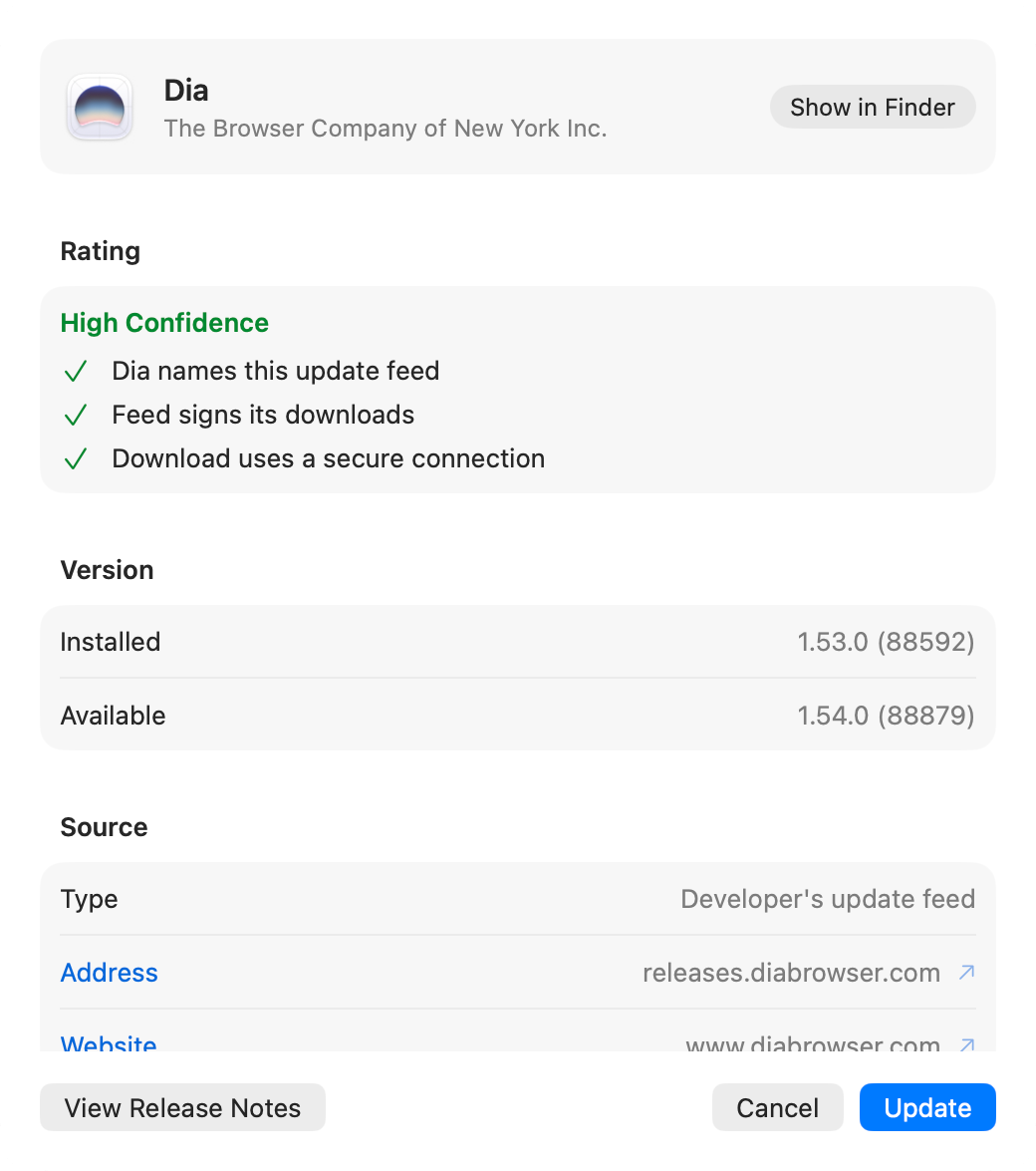
Click any update to see what Upto knows about it: where it comes from, the installed and available versions, the release date, the size of the download, and how it will be checked and installed. Every update gets a rating. One rated Low Confidence opens this view instead of installing, so you can look before anything changes.
Update All installs every update in the list that Upto can install itself. It asks before including a major version, which may need a new license. Updates offered only as a download page, updates rated Low Confidence, and updates for copies someone other than the developer signed are left for you to install one at a time. Turn on Authenticate with Touch ID or password in Settings, and apps that need an administrator are approved once for the whole batch.
Homebrew apps update through Homebrew, so its records stay correct. App Store updates install from Upto when the mas command-line tool is installed, and open in the App Store when it isn’t. A download or a Homebrew upgrade in progress can be stopped, and an update that failed can be tried again.
Command-line tools, in the same window
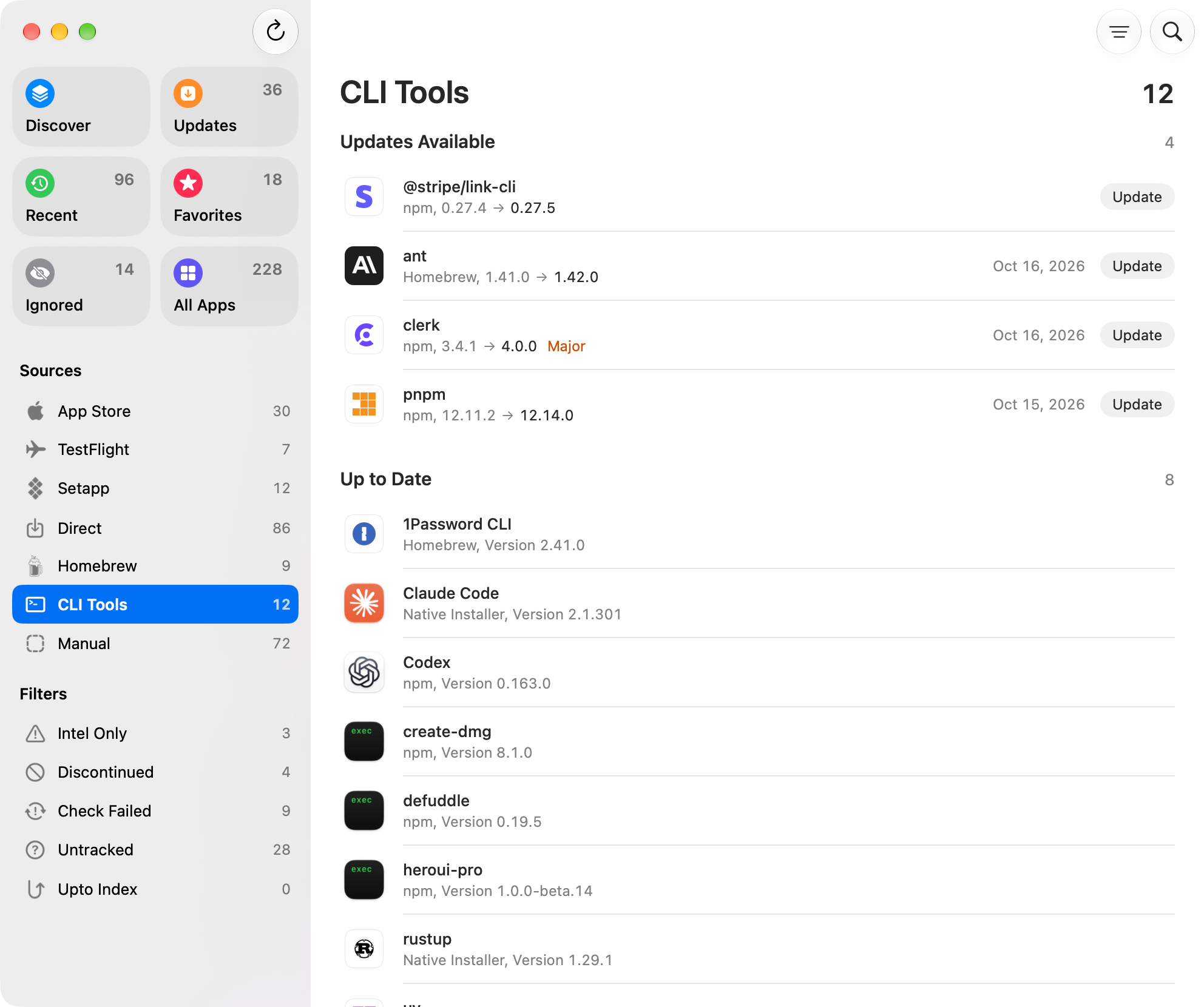
CLI Tools collects the command-line tools on your Mac: Homebrew formulae and command-line casks, global npm packages, tools like Claude Code and Codex that come with their own installer, and Python tools from pipx or uv once you turn them on in Settings. Each one is updated the way it was installed, right from Upto.
Know what changed
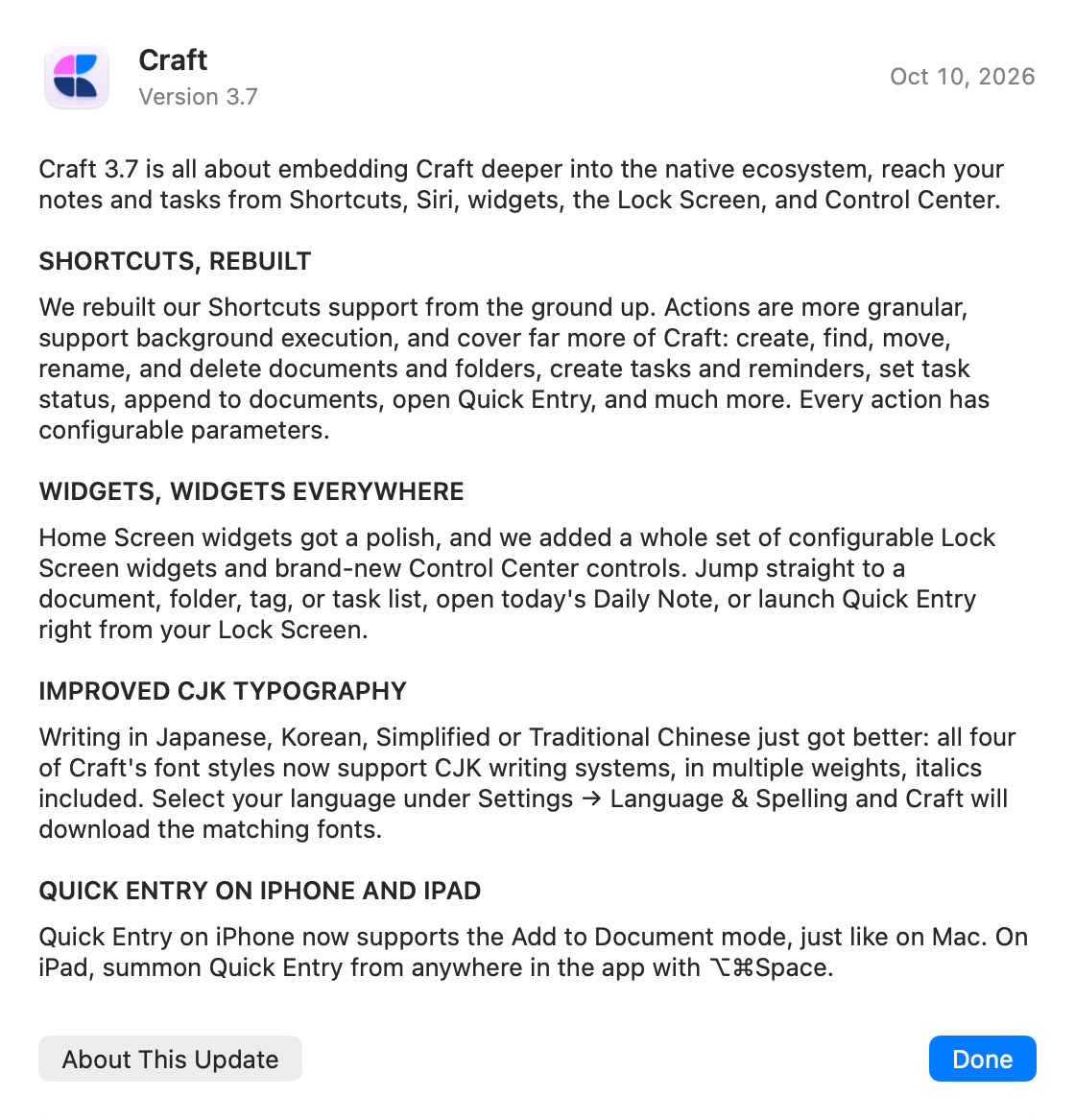
Updates in the list show their release date and the first lines of their release notes when Upto can find them, so you can see what changed without opening anything. The View menu shows or hides the notes for the whole list at once, and More opens an update’s full notes.
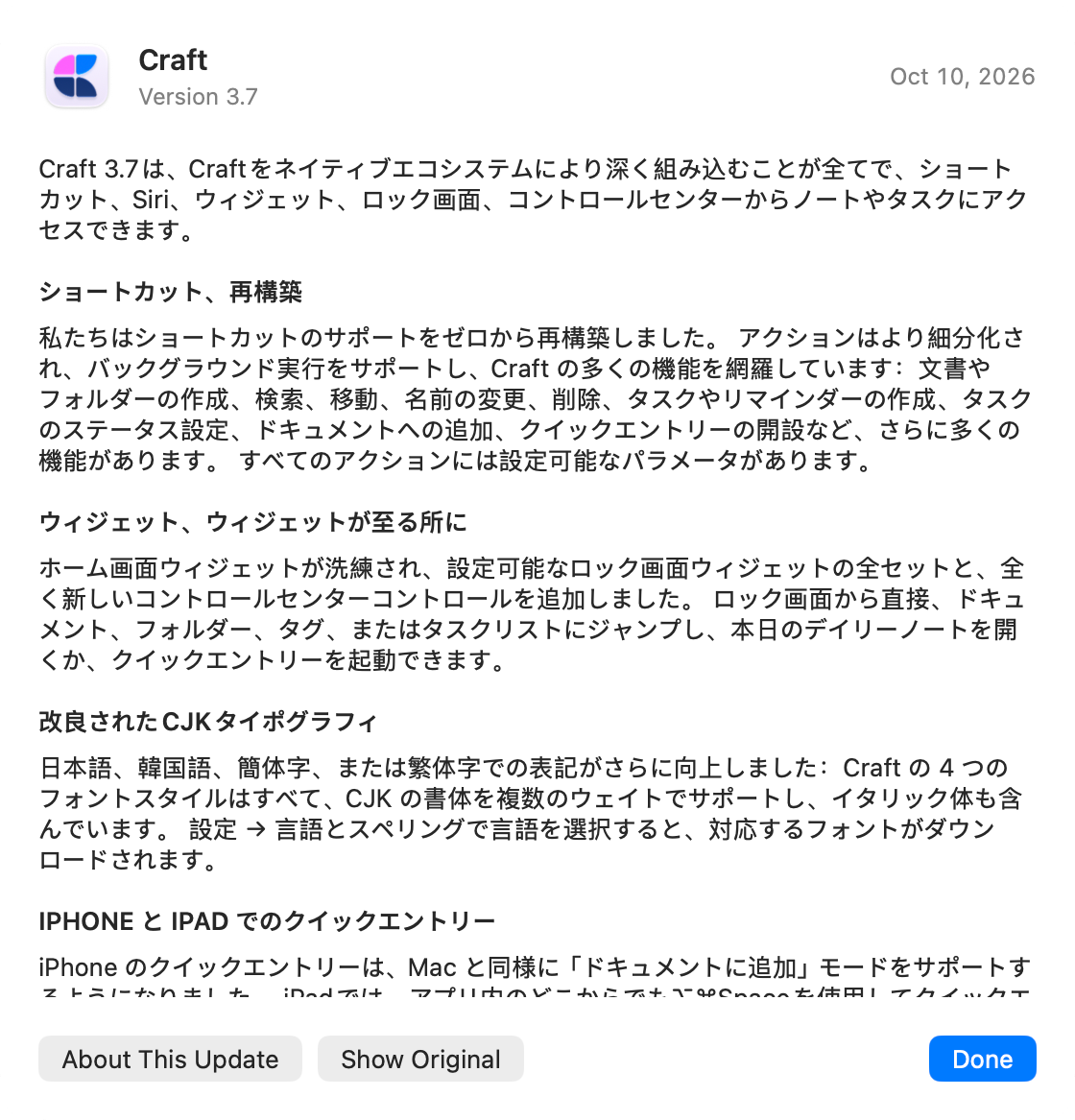
When a developer leaves the notes out, Upto looks for them and shows only the part about that version. Notes written in another language are translated on your Mac into the language you choose, with the original a click away. View Release Notes works for the version you already have, too, for the times you want to know what a recent update brought.
Out of your way
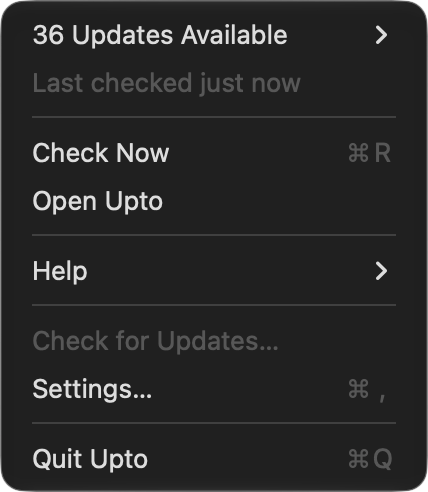
Upto can open at login and stay in the menu bar, where its menu lists the latest updates and can start a check without opening the window. The number of waiting updates appears on the Dock icon and next to the menu bar icon, and you can turn either off. You choose which notifications you get. Upto always tells you when an update couldn’t be installed or an app needs to quit first, because those are waiting on you.
If you’d rather not update something yet, skip the version that’s waiting, or ignore an app’s updates for a day, a week, a month, or indefinitely. Betas are offered for apps whose beta you already run or that you set to receive betas in their own settings, and for others once you turn on Include beta versions. Major versions are labeled in the list, and About This Update marks updates a developer flags as critical.
What stays on your Mac
Scanning, verification, and translation all happen on your Mac. Upto goes online to check versions, read release notes, and download updates, to confirm a download’s notarization with Apple, to load Discover and the icons of command-line tools, to report when Discover shows a sponsored app, to share and look up versions with Upto Index while you have a license and it’s on, to check for its own updates, and to activate and check your license or trial. It has no analytics.
Beyond updates
Discover suggests apps based on what you have installed, including alternatives to apps that are discontinued or built only for Intel. If you also use Sweeper, our app uninstaller, Control-click any app in Upto to reset it, or to uninstall it along with the files it leaves behind.
Getting Upto
Upto runs on macOS 15 (Sequoia) or later. Keeping up with updates is work that never finishes: sources change, download pages move, and Upto Index runs on servers. That’s why Upto is offered as a yearly subscription, with a one-time purchase for a limited time during the launch. You can download Upto and compare the two plans on the Upto page.