Looking for a MacUpdater Alternative?
MacUpdater is no longer maintained, and its update database goes offline at the end of 2026. Upto checks every app on your Mac for updates, wherever it came from, and installs them for you.
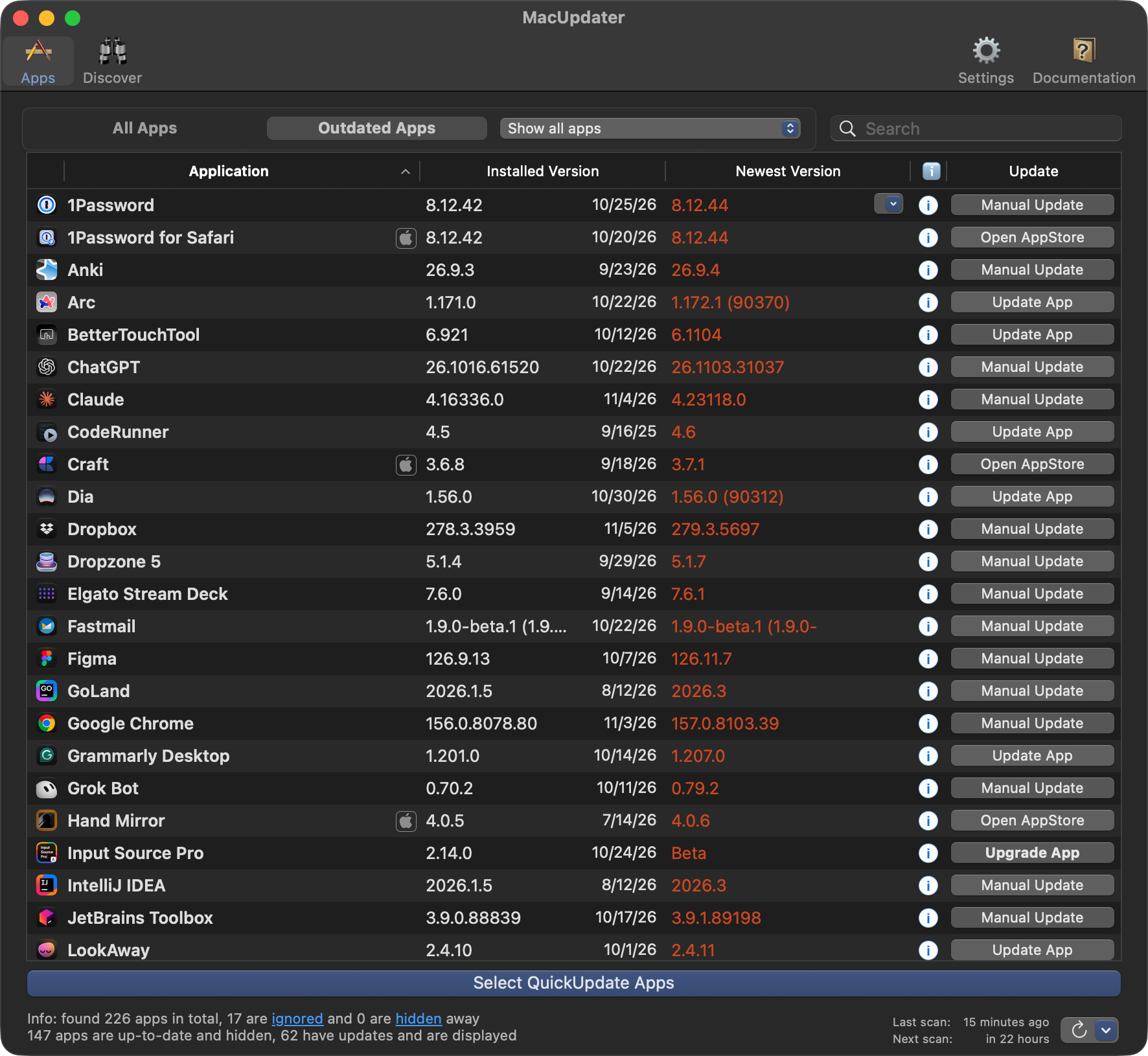
MacUpdater’s developers maintained it every day from mid-2018 until the end of 2025. Their FAQ says the final version, 3.5, stays free to use, but that without daily maintenance it will be able to update fewer apps over time. Once the database server is turned off, it will also stop reporting updates for the apps it can’t install.
Do I need to import anything?
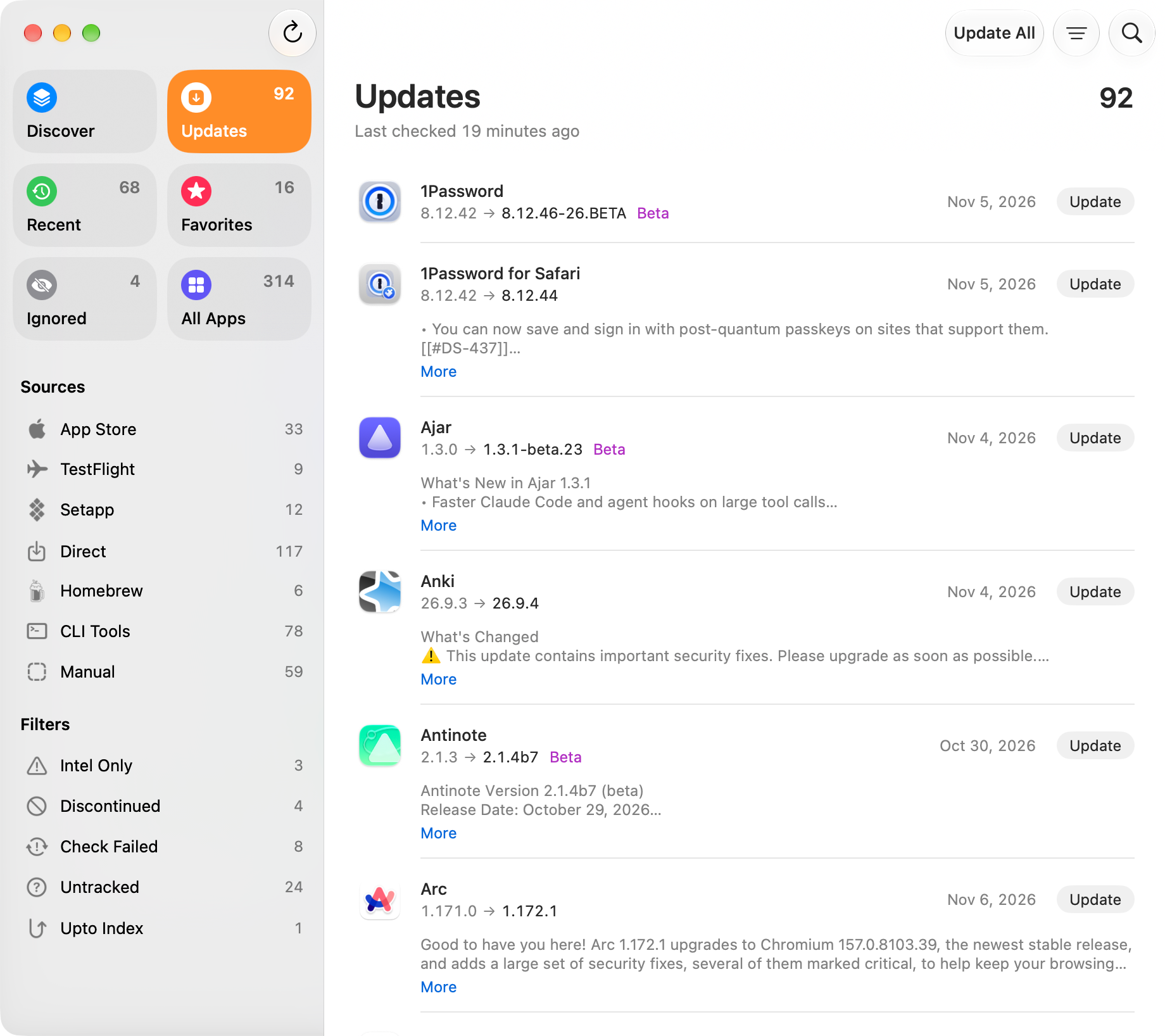
No. The first time Upto opens, it finds the apps on your Mac by itself: everything in your Applications folders, plus any folders you add, along with input methods, settings panes, screen savers, and audio plug-ins. Each one is listed under where it came from, such as the App Store, Homebrew, or Setapp. You don’t need an account.
If you kept certain apps out of your updates, you can do the same in Upto. Control-click an app and choose Skip This Version to hide its update until a newer one arrives, or Ignore Updates to set its updates aside for a day, a week, a month, or indefinitely. The Ignored page lists everything you’ve set aside, and one click brings any of it back.
Will Upto find updates for my apps?
Upto checks each app where its updates come from: the App Store for App Store apps, Homebrew for Homebrew apps, and the app’s own update feed for apps that update themselves. Apps managed by Setapp, Creative Cloud, or JetBrains Toolbox are updated by those apps. You choose how often Upto checks, from every hour to once a month.
Apps with no updater of their own are the hard case. Upto looks for an update source for each one, such as the releases its developer publishes on GitHub, GitLab, Codeberg, or Gitea, and keeps using what it finds. A source Upto isn’t sure about waits for you to look it over. To add one yourself, choose Suggest Update Source and enter an update feed, a GitHub repository, or a web page.
Upto’s own checks cover the vast majority of update sources. When no source lists an update at all, Upto Index looks for it among versions that people using Upto share anonymously. What it shares is listed in the Upto FAQ, and you can turn it off with Use Index in Settings.
If you subscribe and later cancel, these checks keep running. The version you have keeps every feature and goes on checking every app and installing its updates. Only Upto Index and updates to Upto itself wait until you subscribe again.
Does Upto install the updates too?
Yes. Click Update next to an app, or click Update All to install every update Upto can install itself, App Store updates included. Upto verifies each download first, then puts the new version where the old one was. If the app is open, Upto quits it and opens it again once it’s updated. Some updates wait for you to install them individually, such as those offered only as a download page or rated Low Confidence. Update All also checks with you before it includes a major version, since that may need a new license.
Apps you installed with Homebrew are upgraded through Homebrew. Command-line tools are listed on a page of their own, CLI Tools, including Homebrew formulae, global npm packages, and tools with their own installers. Each is updated the same way it was installed.
Before you install anything, the list can show each update’s release date and the start of its release notes, translated into the language you choose when they’re written in another.
How do I start?
Upto runs on macOS 15 (Sequoia) or later. Download Upto and open it to start a free trial with every feature, Upto Index included. Pricing is on the Upto page. Switching from MacUpdater shows where common apps get their updates in Upto, and Introducing Upto describes what it does in more detail.