Which Mac App Updater Should You Use in 2026?
With MacUpdater no longer maintained, several apps now offer to keep the apps on your Mac up to date. Here are nine of them, and who each one suits.
Parcse makes Upto, one of the apps below. Here’s how the nine apps compare on what they check, how they install updates, and what they cost, based on their developers’ websites and the apps themselves as of November 7, 2026.
At a glance








| Upto | MacUpdater | App Cleaner | CleanMyMac | Updatest | Floodtide | BrewUI | Latest | Applite | |
|---|---|---|---|---|---|---|---|---|---|
| Checks | |||||||||
| App Store | Yes | Yes | Yes | Yes | Yes | Yes | No | Yes | No |
| TestFlight | Yes | No | No | No | No | No | No | No | No |
| Update feeds | Yes | Database only | Yes | Sparkle only | Yes | Yes | No | Sparkle only | No |
| GitHub | Yes | Database only | Yes | No | Yes | Yes | No | No | No |
| GitLab, Codeberg, Gitea | Yes | Database only | No | No | No | No | No | No | No |
| Web pages | Yes | Database only | No | No | No | Own catalog | No | No | No |
| Homebrew apps | Yes | Database only | Yes | No | Yes | Yes | Yes | Limited | Through it only |
| Homebrew formulae | Yes | No | Yes | No | Yes | Yes | Yes | No | No |
| npm, pipx, uv | Yes | No | No | No | No | No | No | No | No |
| Standalone CLI tools | Yes | No | No | No | No | No | No | No | No |
| Updates | |||||||||
| Alerts you to updates | Yes | Yes | Menu bar only | Menu bar only | Yes | Yes | No | No | No |
| Installs updates | Yes | Yes | Yes | Yes | Homebrew only | Yes | Yes | Sparkle apps | Yes |
| Installs automatically | No | Yes | No | No | No | Yes | No | No | No |
| Updates App Store apps | Yes | No | Yes | No | In Terminal | Yes | No | Beta only | No |
| Translates release notes | Yes | No | No | No | No | No | No | No | No |
| Cost | |||||||||
| Price | $14.99/year15 Macs$39 one-time23 Macs | Free | $14.95/year1 Mac$34.95 one-time31 Mac | $39.95/year1 Mac$119.95 one-time31 Mac | Free | $14.99 one-time43 Macs$27.99 one-time6 Macs | Free | Free | Free |
| Paid add-on | None5 | None | None | None | $12.99/yearNetwork | $13.99/yearThe Tide | None | None | None |
- Upto’s $14.99 a year is a launch offer, then $19.99, with major updates and Upto Index.
- Upto’s $39 one-time price includes Upto Index for good, every 1.x update, and a discounted upgrade to 2.0.
- App Cleaner’s and CleanMyMac’s one-time licenses don’t include major upgrades.
- Floodtide’s one-time prices include every 1.x update, with a paid, discounted upgrade to 2.0.
- Both Upto plans include Upto Index. Updatest’s Network and Floodtide’s Tide cost extra.
Upto: every app on your Mac, up to date
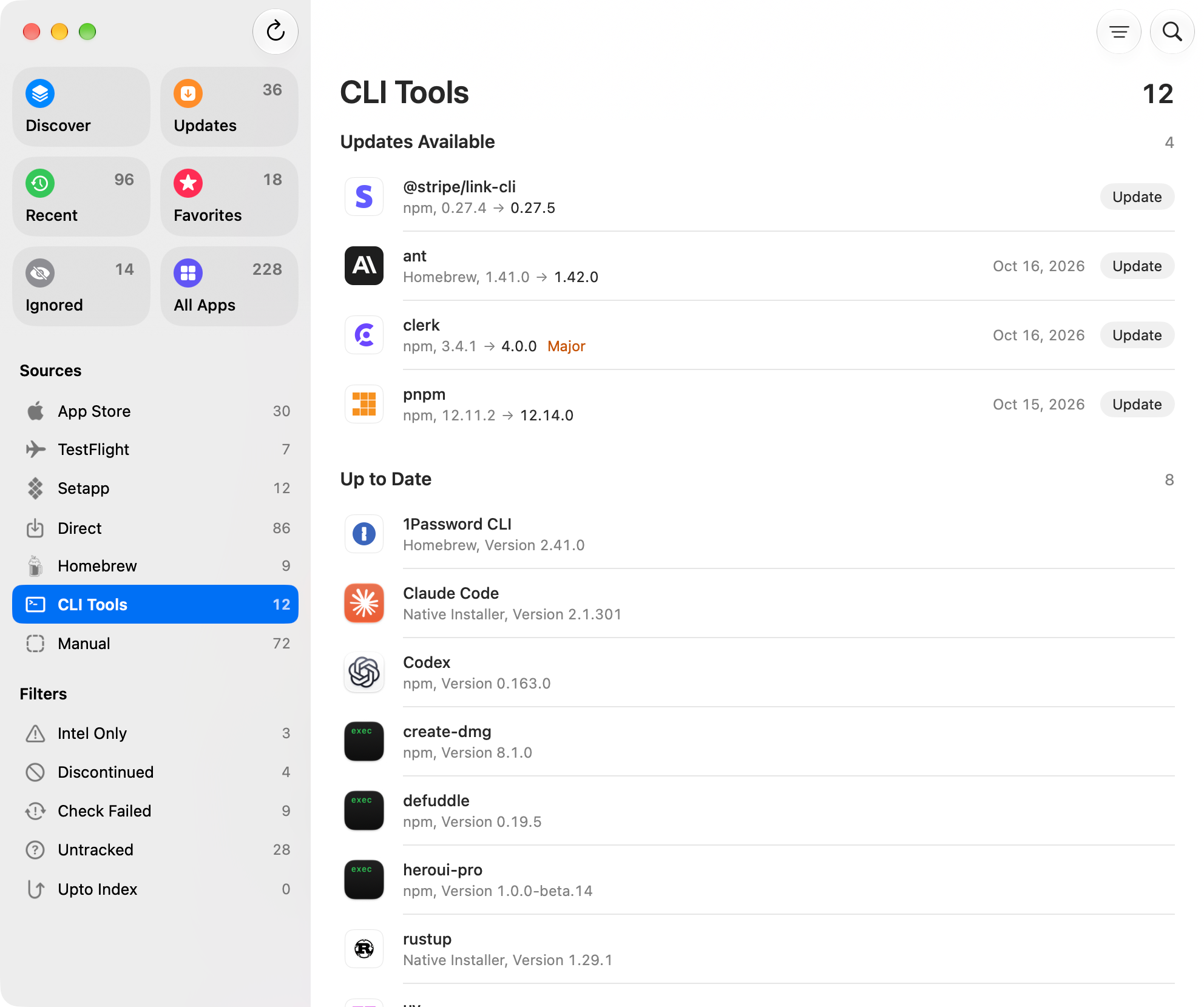
We make Upto, so read this part with that in mind. Its design starts from one list: every app on your Mac, along with input methods, settings panes, screen savers, audio plug-ins, and command-line tools, grouped in the sidebar by where they came from. Release notes sit right in that list, translated on your Mac into your language with the original a click away, and Upto looks for the notes an update leaves out. Each main page has a keyboard shortcut, and there’s nothing to import and no account to make.
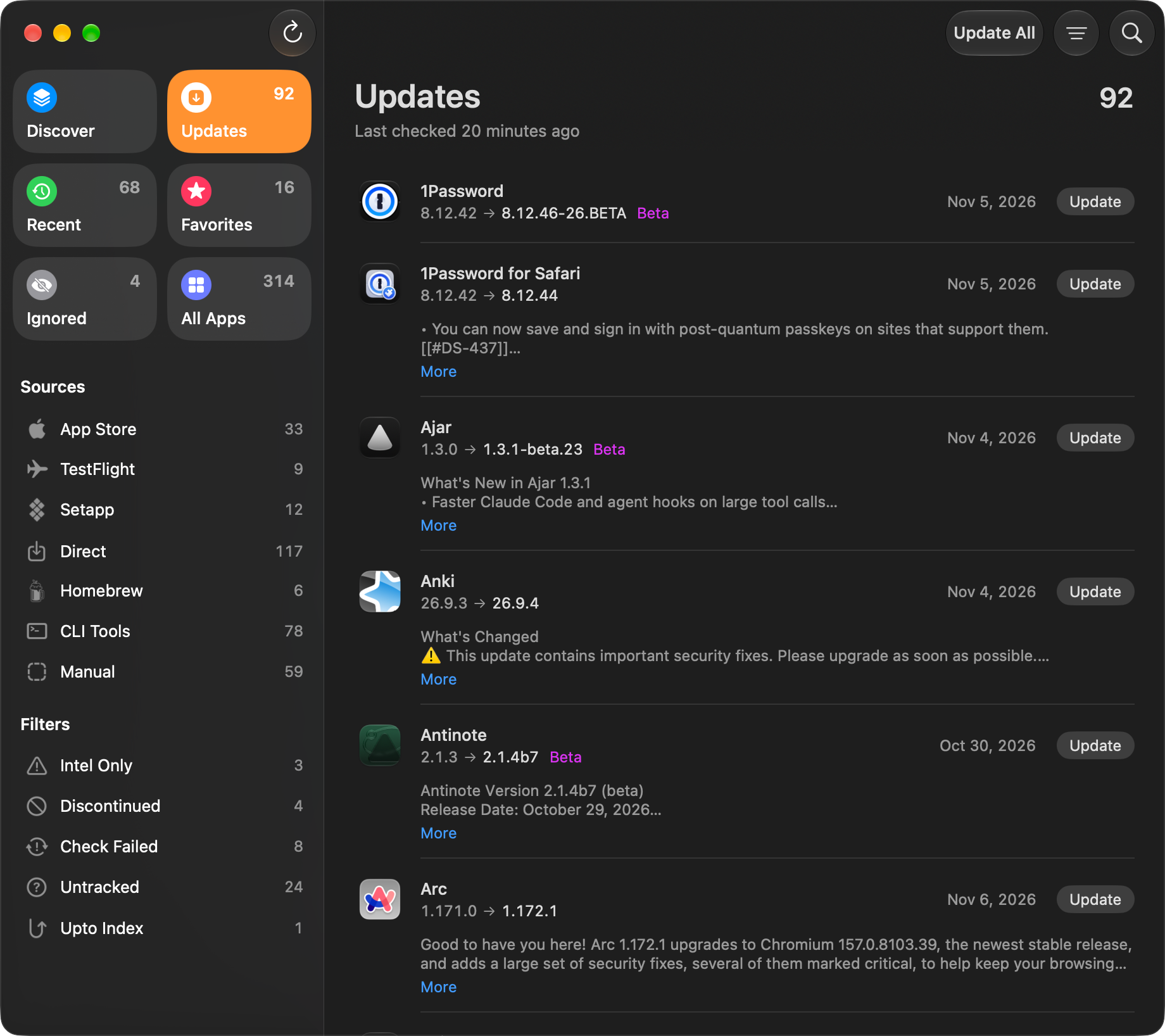
It finds updates where they come from: each app’s own source, GitLab, Codeberg, and Gitea releases included, a source it finds for apps with no updater of their own, or a feed, a repository, or a web page you give it. When no source lists an update, Upto Index finds it among versions people using Upto share, at no extra cost. Before anything installs, Upto checks that the update is signed by the app’s developer, runs on your Mac, and is newer than what you have, and an update it rates Low Confidence waits for you to look it over.
Installing takes one click. Update All installs everything Upto can, App Store updates included when you’re signed in with the Apple Account the app came with, asking for Touch ID or one password for the whole batch and quitting and reopening open apps as it goes. Homebrew, npm, pipx, uv, and tools like Claude Code are each updated the way they were installed. You can also act from a notification: install an update, skip that version, or ignore the app for a day. Upto checks from every hour to once a month, keeps a count on its Dock icon and in the menu bar, and can limit notifications to favorites or major updates, or send them once a day. What it doesn’t do is install updates automatically.
Upto needs no permissions to run, and its Permissions settings list each one it can use, what it’s for, and whether it’s on: notifications, Launch at Login, Background Activity for approving installs, App Management, and Full Disk Access, used only to check TestFlight builds. It has no analytics. Its license and update checks send a device identifier, and with Upto Index on, which is the default, it also shares the versions of your apps.
You can pay yearly for up to five Macs, or once for three, and either way Upto Index is included. If you cancel, the version you have keeps every feature and keeps checking. The free trial has every feature, and Upto requires macOS 15 or later.
Pros
- One list for every app and tool, with release notes in it
- Checks every kind of source in this comparison
- Checks each update before it installs
- One click installs every update, App Store ones included
- Notifications you can update or skip from
- Shows every permission it uses and why
- Upto Index finds updates that no source lists, included in the price
Cons
- Requires macOS 15 (Sequoia) or later
- Doesn’t install updates automatically
- The yearly plan is a subscription
- Shares your app versions with Upto Index unless you turn it off
- Updates for iPhone and iPad apps open in the App Store
MacUpdater: no longer maintained
CoreCode, which has made Mac software since 1998, released MacUpdater in 2018 and maintained its update database every day until the end of 2025. It stopped, CoreCode says, because MacUpdater was never financially sustainable without a subscription. Version 3.5, the last, is free, with every former Pro feature.
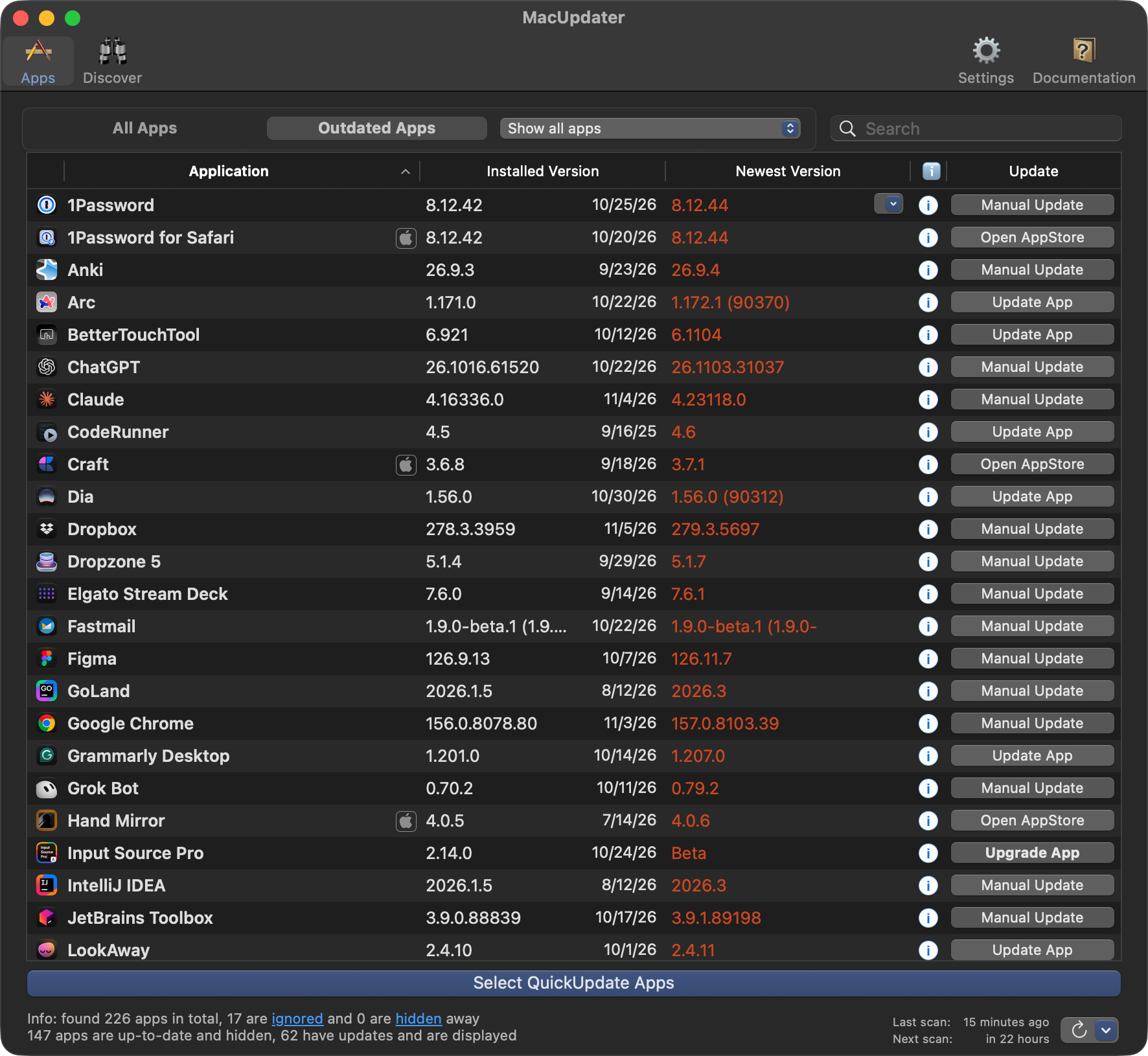
It updates apps in bulk, on a schedule, or entirely on its own, covers audio plug-ins, and runs from the menu bar, notifying you of new updates. App Store apps were always left to the App Store, command-line tools were never part of it, and it finds updates only through CoreCode’s own database.
The risk now is time. CoreCode no longer checks updates, so it expects the number of apps MacUpdater can update to fall from about 7,000 to about 3,500, and more beta versions to slip through as updates. Its database server is turned off after 2026. Its optional privileged helper, which spares you your password, needs Full Disk Access. It runs on macOS 13 or later, and if you used it, Looking for a MacUpdater Alternative? covers moving to Upto.
Pros
- Free, including every former Pro feature
- Installs updates in bulk, on a schedule, or automatically
- Notifies you of new updates
- Covers audio plug-ins
Cons
- No longer maintained, and its database server is turned off after 2026
- Fewer apps it can update, and more false updates, as time goes on
- App Store updates open the App Store
- No command-line tools
App Cleaner: an uninstaller that also updates apps
Nektony, based in Odesa, Ukraine, has made Mac utilities since 2011 and launched App Cleaner & Uninstaller in 2015. Uninstalling comes first: it removes apps and their leftovers, resets apps, manages startup items and extensions, and since version 10 shows and blocks apps’ network access. For updates it checks the App Store, Sparkle and other update feeds, GitHub, and Homebrew, and version 10.0 added Homebrew command-line tools and Safari extensions to its update database.
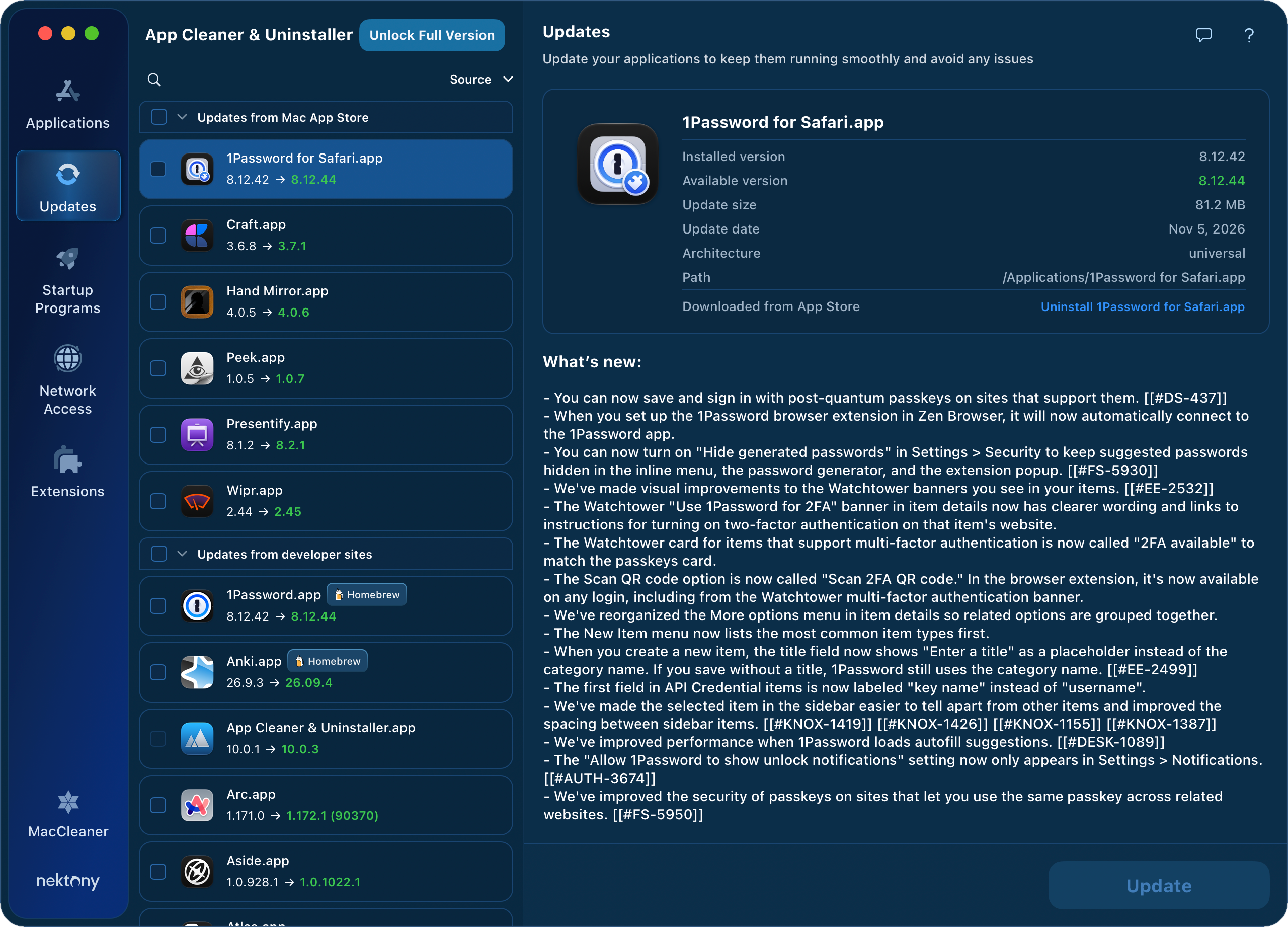
The Updates tab lists updates from the App Store and from developer sites with each one’s size, date, and release notes, and installs the ones you pick, App Store updates included. It doesn’t alert you to new updates or install them automatically, as Nektony itself notes, and its optional menu bar helper shows how many are waiting. Command-line tools come only through Homebrew.
It asks for Full Disk Access when you first open it, which you can skip at the cost of missing some leftovers, and for your administrator password to remove system files. If you take part in its program improvement, it sends your list of apps and their update links to Nektony and to Google Analytics. It’s sold by the month, by the year, or once, for one, two, or five Macs, after a 2-day trial, and runs on macOS 11 or later.
Pros
- Installs App Store and other updates inside the app
- Shows each update’s size, date, and release notes
- Also removes apps and the files they leave behind
Cons
- No alerts for new updates and no automatic updates, as Nektony notes
- Asks for Full Disk Access when you first open it
- Command-line tools only through Homebrew
- The base price covers one Mac
CleanMyMac: a Mac cleaner with an Updater
MacPaw, based in Kyiv, has made CleanMyMac since 2008. It cleans junk, removes malware, and uninstalls apps, and the Updater is one of its many tools.
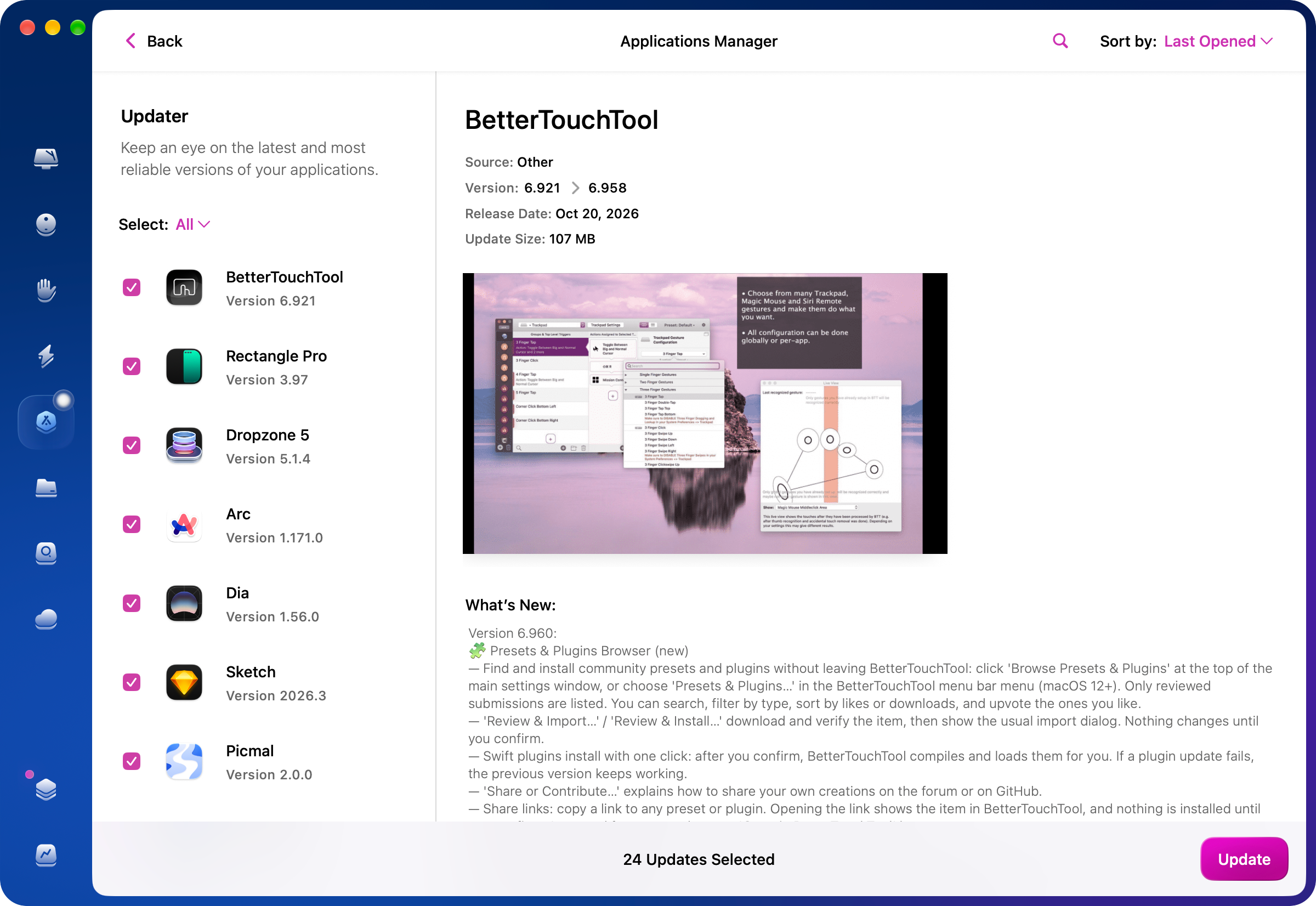
The Updater shows a list on the left and, on the right, each update’s version, size, release date, source, and what’s new. It installs Sparkle apps and others it calls custom updates, all at once if you like. App Store updates are only listed, never installed, and the edition sold on the Mac App Store doesn’t list them at all. There are no GitHub releases, no Homebrew, and no command-line tools, and it’s the menu bar menu, not a notification, that tells you updates are waiting.
CleanMyMac strongly recommends Full Disk Access and installs a privileged helper, CleanMyMac Agent, which needs your administrator password and without which it can’t uninstall apps. In the version from MacPaw’s website, usage analytics is on by default and includes your list of apps, and crash reports are sent either way. Plans run monthly, yearly, or once, for one, two, or five Macs, after a 7-day trial, and it runs on macOS 11 or later.
Pros
- Installs every update it can in one click
- Shows each update’s details and what’s new
- Also cleans your Mac, removes malware, and uninstalls apps
Cons
- Lists App Store updates but can’t install them
- No GitHub releases, Homebrew, or command-line tools
- Installs a privileged helper, and usage analytics with your app list is on by default
- The base price covers one Mac
Updatest: free, with a paid Network
Updatest, made by Jared Mariash, left beta in January 2026, and in October joined Workbrew, a company built around Homebrew. It’s now free, and version 3.0 gave it a new design around Updates, Installed, and Search tabs.
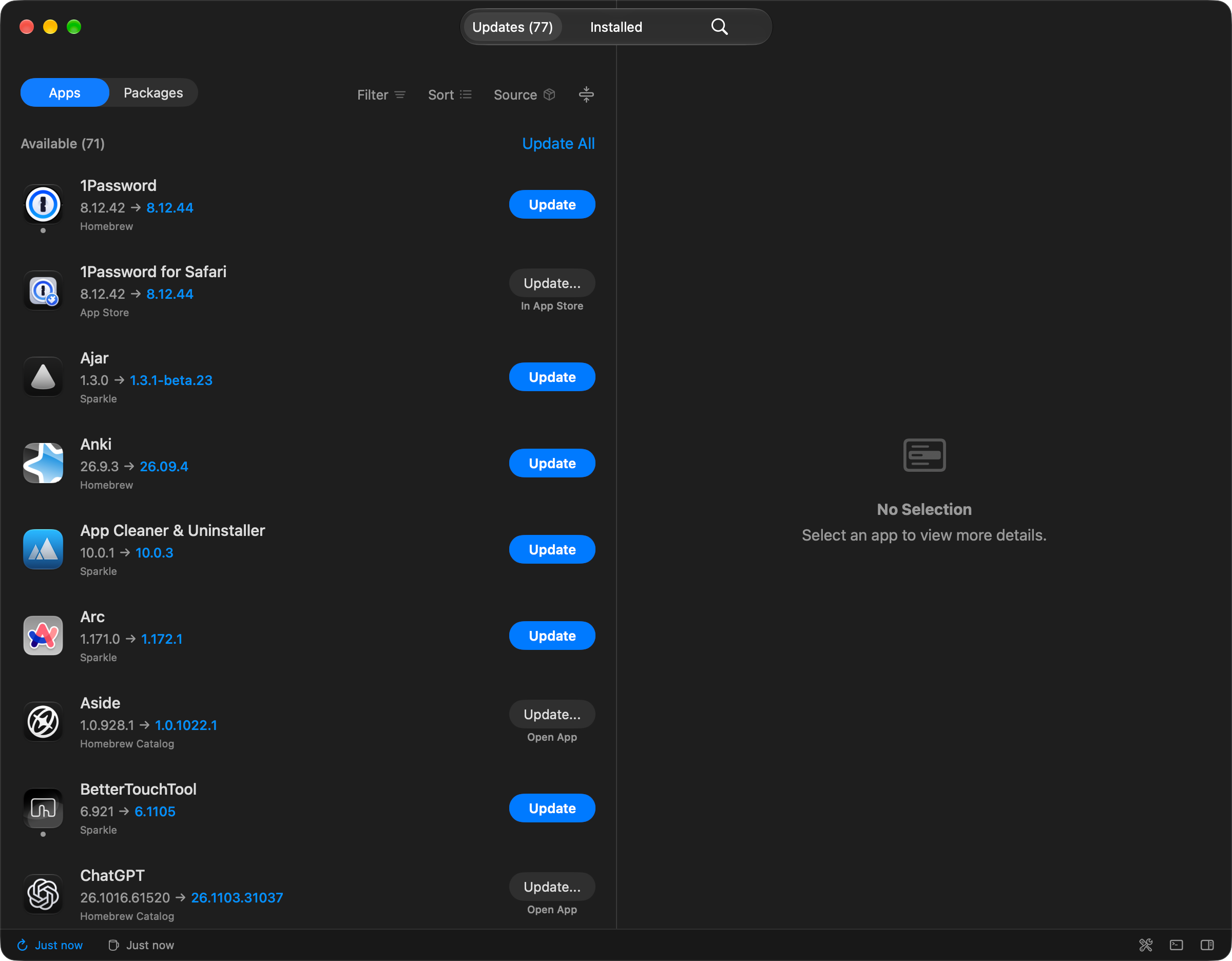
Its idea is to bring your apps under Homebrew. It suggests adopting apps you installed yourself, App Store apps included, so that Homebrew manages them from then on. Only apps that Homebrew manages get installed by Updatest itself. The trade-off is that Homebrew replaces your copy with its own, and switching back means downloading the app again. Updatest warns against adopting paid App Store apps, since you could end up with an unlicensed copy. For everything else it opens the App Store, the app’s own updater, or a download page, and with the mas command-line tool installed, it can run App Store updates in Terminal.
Updates that need your password aren’t installed in the app. They open in Terminal, where you type the password and finish the update yourself. Versions other people report come from the Updatest Network, a subscription, and by default Updatest shares your app list with that network. It requires macOS 15 or later.
Pros
- Free
- Checks GitHub and Homebrew as well as the App Store and update feeds
- Can bring apps you installed yourself under Homebrew
Cons
- Installs only Homebrew updates itself
- Updates that need a password finish in Terminal
- Adopting replaces your copy of an app, and undoing it means downloading the app again
- Versions from the Updatest Network take a subscription
- Shares your app list by default
- Requires macOS 15 (Sequoia) or later
Floodtide: a one-time price, with an optional yearly add-on
Bhop Studio released Floodtide 1.0 in September 2026 and has shipped 75 updates since. For MacUpdater users, it reads MacUpdater’s app list to show which of those apps it covers, and can carry over the ignore list. It checks update feeds, GitHub releases, Homebrew, and the App Store, along with a catalog of its own, but not GitLab, Codeberg, or Gitea releases. Its list splits the apps that need a decision from the ones it handles on its own.
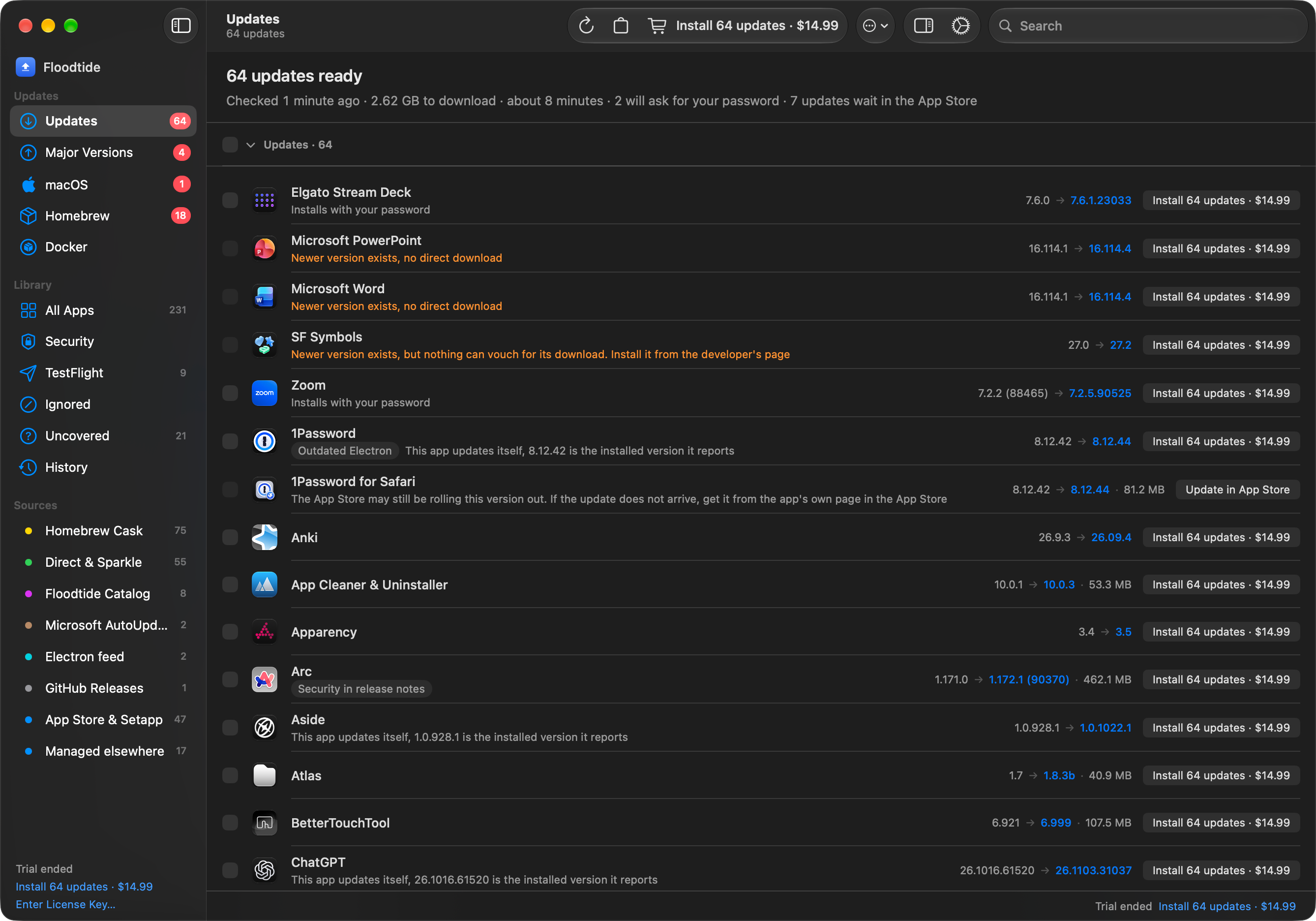
Automatic installing is off by default. Turned on, it covers every app except the ones you exclude, and since version 1.5.0 it can stick to security and critical updates. Even then it leaves some updates to you. An app that’s open is updated only after you quit it, and an update that needs an administrator waits for you to install it. Backups are on by default and keep the version each update replaced for a week, so an update can be undone. Checks run from hourly to weekly, and it has many settings, from quiet hours and weekly summaries to three ways of counting updates on its Dock icon, which take a while to learn.
Installing App Store updates in place, and installing administrator updates without a password, both depend on its installer, a privileged helper you add once in Settings. Without it, administrator updates are batched behind one password prompt, which macOS 27 shows as a warning about an unverified script. By default it shares your apps’ names, versions, and update feed addresses once a day. After the 14-day trial it keeps checking but stops installing until you buy a one-time license for three or six Macs, which covers 1.x updates but not 2.0. The Tide, a yearly add-on, adds about 50 hand-researched apps a week.
Pros
- Keeps the replaced version for a week, so you can undo an update
- Can install automatically, even security updates only
- Installs most App Store updates in place
- Carries over MacUpdater’s ignore list
Cons
- Many settings to learn
- Automatic updates wait for open apps to quit and leave administrator updates to you
- Updates that need an administrator ask for a password unless you set up its installer
- The Tide is an optional yearly add-on
- No GitLab, Codeberg, or Gitea releases, and command-line tools only through Homebrew
BrewUI: Homebrew’s official app
Homebrew released an app of its own, BrewUI, with Homebrew 7.0 in September 2026. Graeme Arthur built most of it, with help from Homebrew’s maintainers, and it installs as an app named Homebrew. Every action shows the brew command behind it, which is most useful if you already know Homebrew.
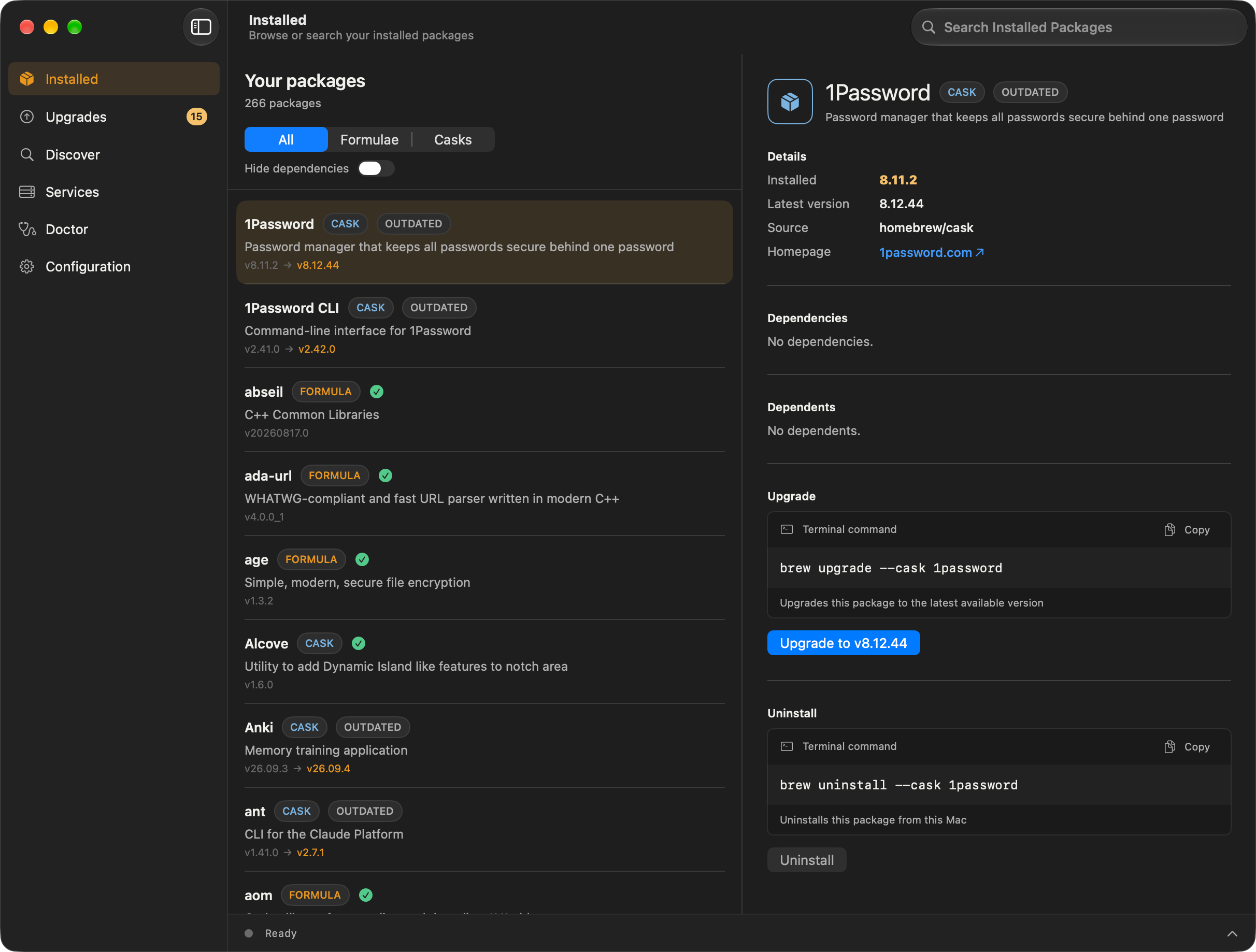
It covers Homebrew’s apps and command-line tools alike. You can browse and search the catalog, install, upgrade everything at once, uninstall, and save your setup as a Brewfile. Its data comes from Homebrew, so it lists only what Homebrew installed, and it doesn’t check for updates in the background or notify you. Homebrew’s settings go in brew.env files rather than in the app.
The current version, 0.6.0 from October 2026, is an early release. It requires macOS 26.2 or later, and in it, upgrades that need your administrator password can fail with an error, which its developers have since fixed in its code. BrewUI is free and open source.
Pros
- Free, open source, and Homebrew’s own
- Homebrew’s apps and command-line tools in one window
- Shows the brew command behind each action
Cons
- Only what Homebrew installs
- No background checks or notifications
- An early version, and it requires macOS 26.2 or later
Latest: free, for App Store and Sparkle apps
Max Langer has developed Latest, a free and open-source updater for App Store apps and apps that update with Sparkle, since 2017. It shows release notes even for apps already up to date, and updates Sparkle apps right from its window.
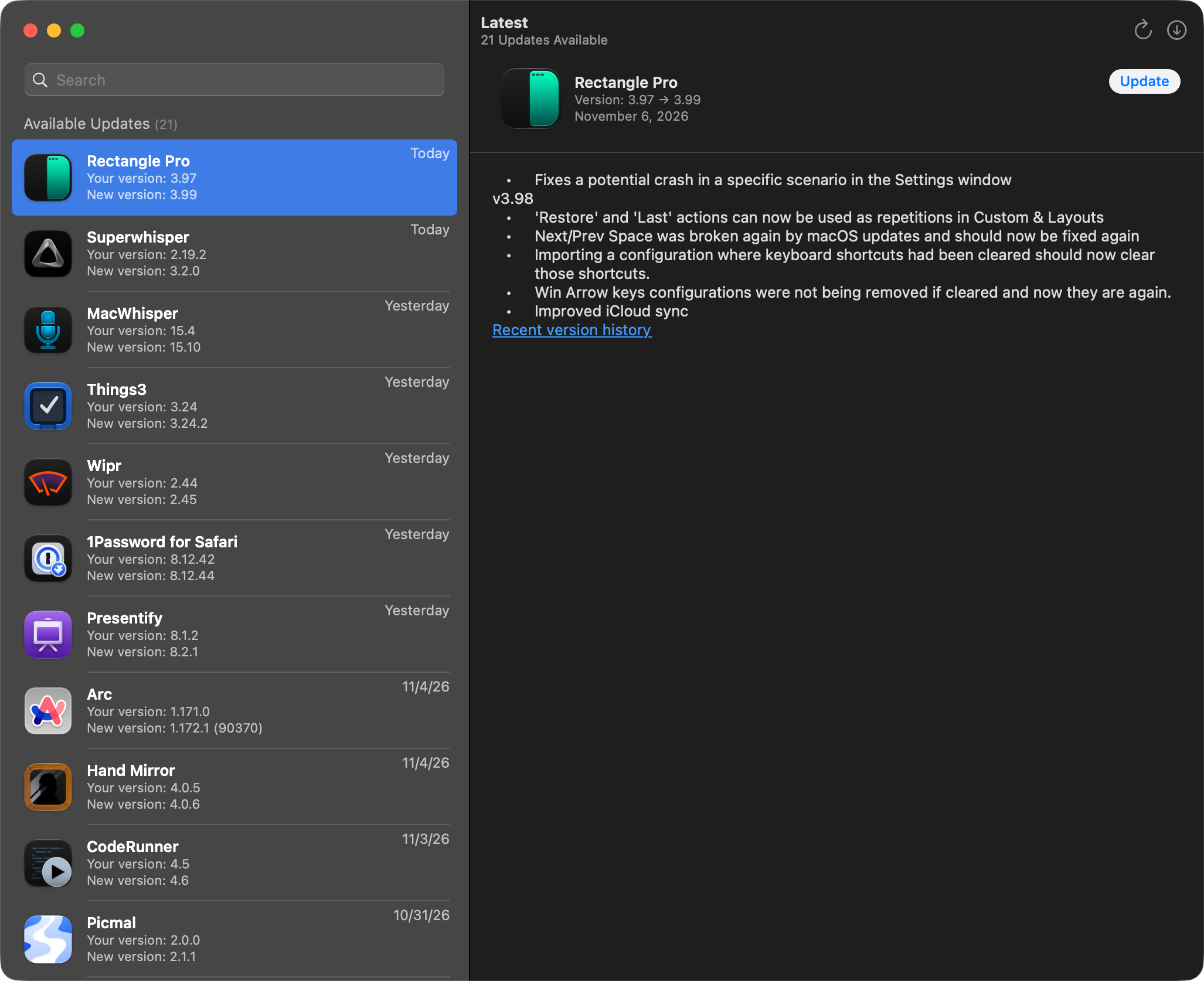
Releases have slowed. The current release, 0.11, came out in June 2025, sixteen months after the one before, and the last beta in February 2026. Since the security fixes in macOS 26.1, installing App Store updates takes that beta, which needs macOS 13.5 or later, an optional privileged helper, and Full Disk Access, and without that permission the install fails with no alert.
It doesn’t run in the background, so it checks only while its window is open, and it doesn’t cover GitHub releases or command-line tools. Homebrew apps can be compared against Homebrew’s catalog, but they’re hidden by default and can’t be updated there. The current release runs on macOS 10.15 or later.
Pros
- Free and open source
- Release notes for waiting updates and up-to-date apps
- Updates Sparkle apps from its window
Cons
- No stable release since June 2025
- App Store updates since macOS 26.1 need the beta, a privileged helper, and Full Disk Access
- Checks only while it’s open, with no notifications
- Only App Store and Sparkle apps
Applite: Homebrew apps without Terminal
Milán Várady built Applite as a free, open-source catalog of the apps Homebrew packages. It looks like a small App Store, a grid of apps with Get buttons and an Updates page with Update All.
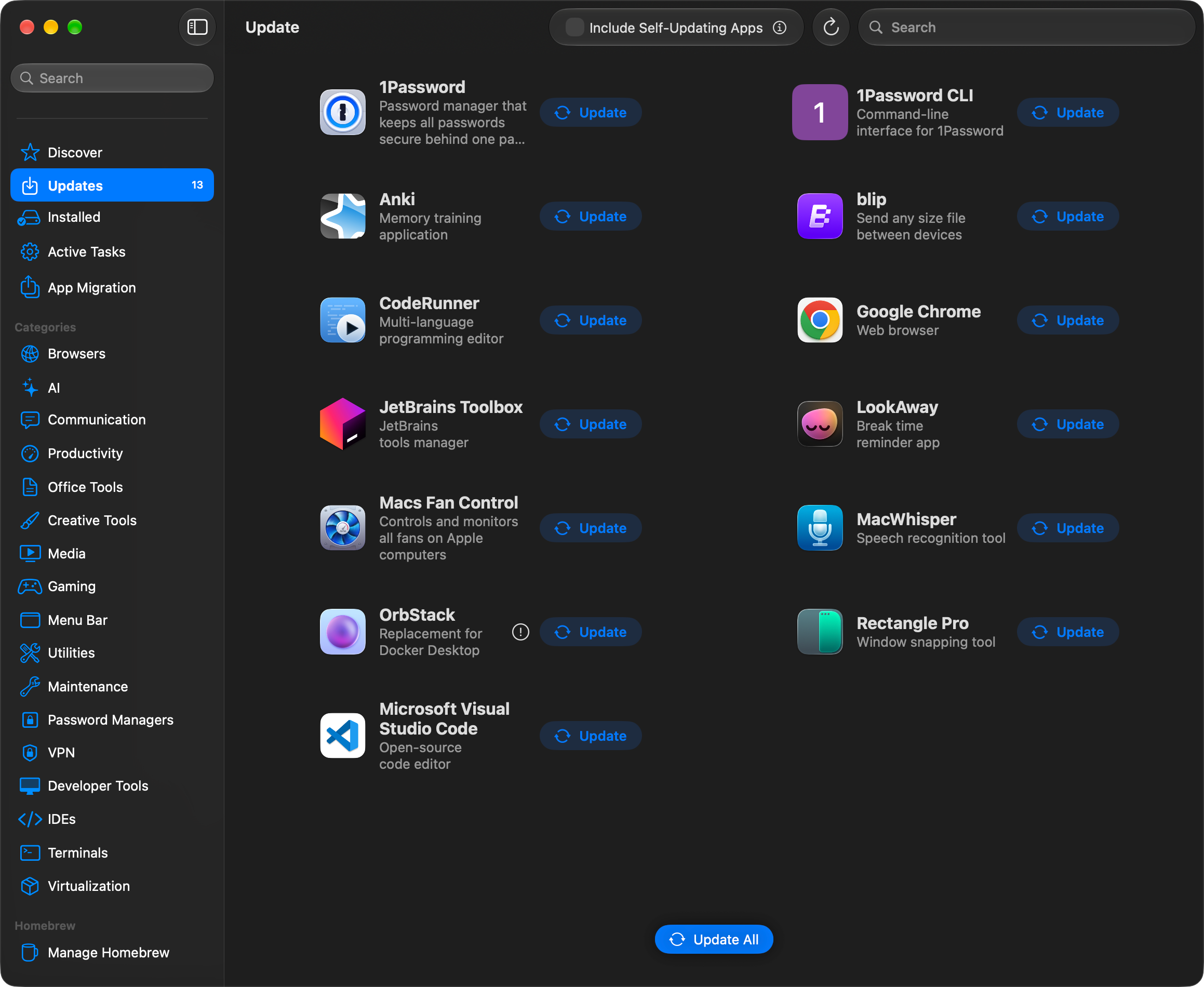
It manages only apps, and only the ones you install through it. An app you installed yourself appears once you install it again through Applite, which replaces your copy and keeps its settings. By default it uses a Homebrew of its own, separate from any you already have, and you can point it at yours instead. It doesn’t check for updates in the background or notify you.
When an app needs your administrator password to install, Applite hands it to the installer as plain text, and its own FAQ asks you to enter it only for apps you trust. Its pace has been uneven, with fifteen months between two releases before 1.4 in August 2026, though it has been active since. It runs on Intel and Apple silicon.
Pros
- Free and open source
- Installs and updates Homebrew’s apps without Terminal
- Works without installing Homebrew yourself
- Uninstalls apps, with their data if you like
Cons
- Only apps installed through it
- Doesn’t check App Store apps or update feeds, or notify you
- Passes your password to installers as plain text
- No command-line tools
Which one to choose
For most people, Upto is the one to choose. It’s the only app here that checks every kind of source in this comparison, apps and command-line tools alike, and it installs the updates itself, App Store updates included, in one click. Each update is checked before it goes in, its release notes are in your language, and you can see every permission it uses. The yearly plan covers every update and Upto Index on up to five Macs, and Pay once includes Upto Index for good, with no add-on to buy.
The others fit narrower needs. Floodtide is for you if you want updates installed automatically, with undo, and are fine with fewer sources and an optional yearly Tide. Updatest suits a Mac you already manage with Homebrew, though it installs only Homebrew updates itself. App Cleaner and CleanMyMac make sense if the cleaning matters more to you than the updates. BrewUI and Applite cover only Homebrew, Latest covers only App Store and Sparkle apps, and MacUpdater is no longer maintained, with its database server going offline after 2026.
Download Upto to start a free trial with every feature.